Te Iho o Te Manawataki | Library
Nau mai, haere mai ki Te Iho o Te Manawataki. Welcome to the Library, the beating heart of the University of Waikato.

Library Search
Discover a wealth of resources.

Find Library Resources
Access our diverse collection of physical, digital, and unique materials, including online resources and items beyond our library via Interlibrary Loan, for all eligible members. Distance and Tauranga students can use our book delivery services.
Digital Resources
Research Commons
Explore the University of Waikato's Open Access repository featuring research publications, theses, and dissertations authored by our faculty and students.
Databases A-Z
A collection of databases spanning various subjects and topics essential for research and assignments. Need help navigating? Contact us for expert assistance.
O Neherā
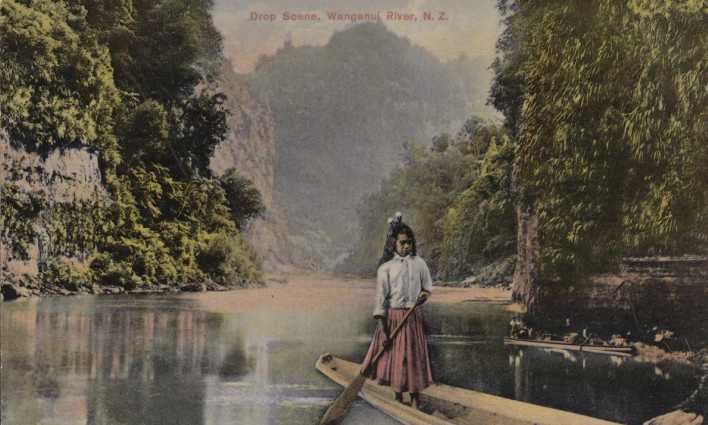
Browse or search our digital archives, featuring historical images, documents, and first-hand accounts offering unique local insights into Waikato and Aotearoa New Zealand. Includes non-digitised collection information.
Library Spaces and Facilities
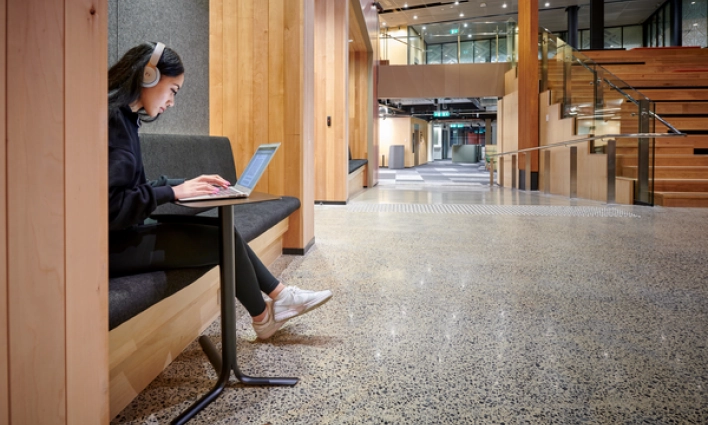
Spaces designed for you and your life. Discover our Whānau room, explore our quiet study spaces, or book a room for you and your group.
Study Guides and Tools
Tools and Strategies
Support your academic journey with our comprehensive guides, covering topics such as referencing, research skills, thesis preparation, software support, and more.

Subject Guides
Discover subject-specific resources, databases, and referencing, plus tips on information literacy, assignment prep, search strategies, and identifying quality sources, and more.

Referencing
This guide provides links to our various referencing style guides, outlines why we reference, and also provides information on copyright and reference management software.
Discover Mātangireia
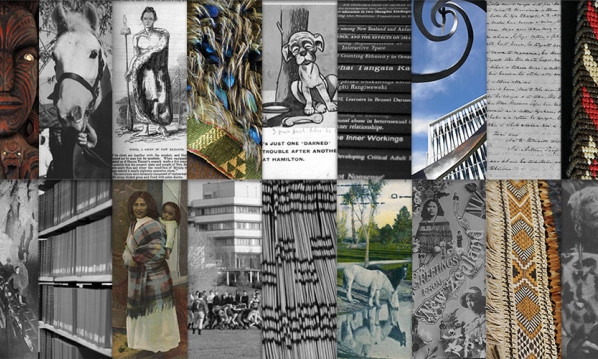
A resource hub of Māori, Pacific, Aotearoa, and Indigenous materials, guided by Kaupapa Māori values, Mātangireia supports research, teaching, learning in an inclusive environment celebrating mana whenua, cultural heritage, and traditional knowledge.
Taonga & Artworks
Nga Taonga o Mahi Māreikura
Huakina! Riariakina! Kia hahaina, kia rangahia! Open! Explore! Grasp knowledge and bring it together! The Mahi Māreikura room showcases and preserves the treasures and works of Dr. Pei te Hurinui Jones.
Nga Taonga o Te Iho o Te Manawataki
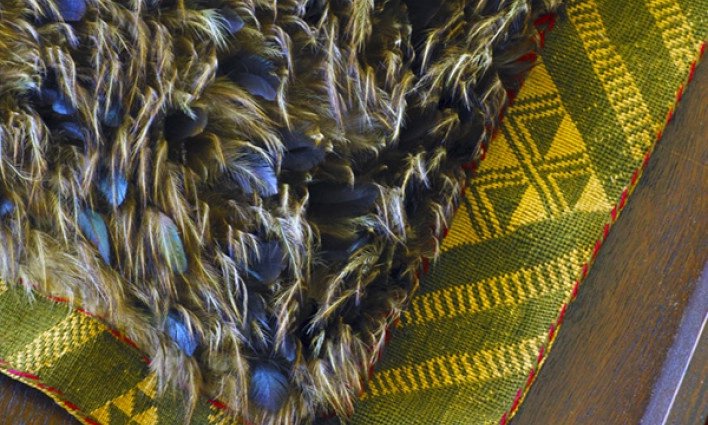
The University of Waikato was established in 1964 and since has become kaitiaki of many taonga, some of which are currently in the care of Te Iho o Te Manawataki Library.
University Art Collection
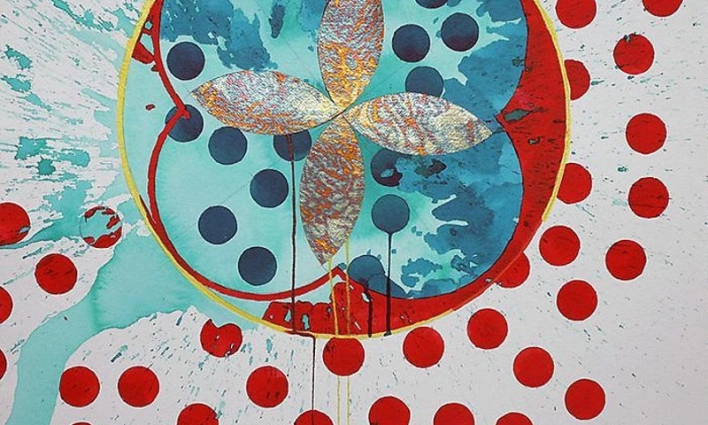
Holding over 600 artworks the collection consists of a broad range of contemporary art and taonga including paintings, works on paper, photography, textiles, ceramics, sculpture, whakairo and mixed media, amongst others.

Researcher Support
Unlock your full potential with our comprehensive suite of resources tailored for researchers and postgraduates. From workshops to personalised guidance, we're here to support your journey toward academic excellence.

Tā Mātou Kōrero - Our Story
This name breathes life into our vision of the Library as a dynamic hub, where knowledge, ideas and people connect and flourish.
Contact and hours
If you need assistance with research, assignment help, or have any general enquiries, feel free to contact the library. We're here to help!
Hours & locale
Hamilton Campus
Teaching Resources
Holidays & exceptions
Phone & email
Post & Courier
Courier
Post
-
Hours & locale 
Hamilton Campus
Monday - Friday: 8am - 5pm | Saturday: 11am - 3pm | Sunday: ClosedGate 5, Hillcrest Road, Hillcrest, HamiltonTeaching Resources
Teaching staff can access and self-checkout resources anytime.TL.4.17, Faculty of Education, Gate 5 Hillcrest Road, Hillcrest, HamiltonHolidays & exceptions
-
Phone & email
-
Post & Courier
Courier
The University of Waikato Library, Gate 3a, 209 Silverdale Rd, Hillcrest, HAMILTON 3216, NEW ZEALANDPost
The University of Waikato Library, Private Bag 3105, HAMILTON 3240, NEW ZEALAND